






You create an account, a project with a plan, and put something on it: WordPress, your own code or a site you move over. Your site is then online on a Cubli address, and you connect your own domain whenever you like.
1. Create an account
Create an account at app.cubli.io. You get your own workspace straight away: it holds your projects, domains and invoices.
Confirm your email address with the button in the mail you receive, then set up two-factor authentication. Everyone needs it. See Your account and two-factor authentication.
2. Create a project
A project is one site or app, with everything that belongs to it: database, domains and backups.
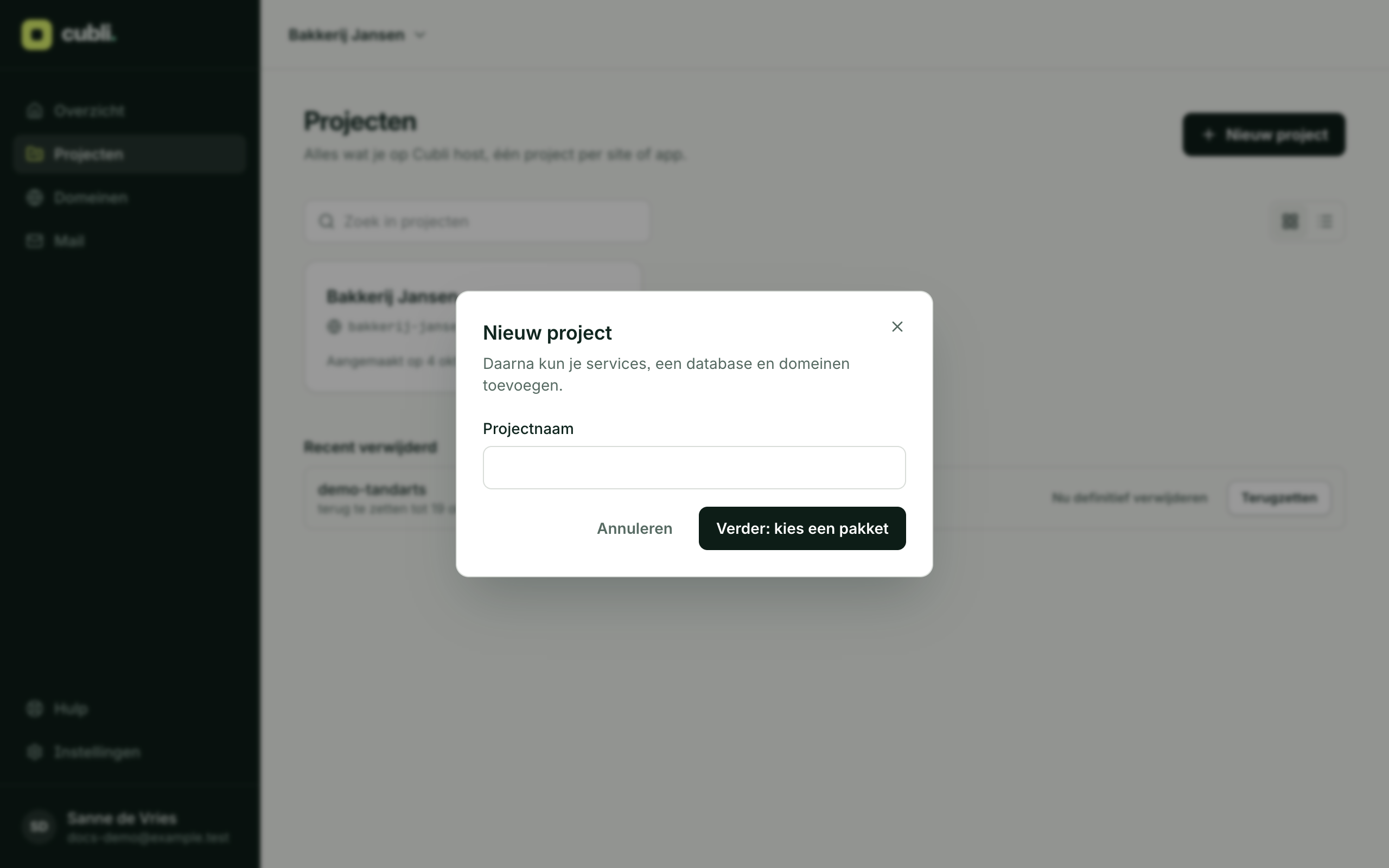
- Click Projects, then New project.
- Give it a name, for example the name of your business or site.
- Click Next: choose a plan.
3. Choose a plan
Every project runs on a plan: Static, Standard, Pro or Business. You see the prices while choosing, and on the pricing page.
- Not sure? Choose Standard. A WordPress site with a database fits on it with room to spare. You can upgrade at any time, and it applies at once.
- Static is only for a site without a database. See What is Static?
- New to Cubli? Choose Try free, then automatically: your first plan is free for 7 days. More in Choose and change a plan.
4. Put something on your project
An empty project lets you choose what goes on it:
- Template: a ready-made site, such as WordPress, an Astro site or a Next.js app.
- GitHub repo: your own code. Every push then goes live by itself. See Deploy from GitHub.
- Database: Postgres or MySQL, if your app needs one.
- Move to Cubli: bring your existing WordPress site. See Move WordPress to Cubli.
- Empty service (CLI or AI): for code you put online from your own computer or with your AI tool. See Your first deploy.
For WordPress, click Template, then WordPress. Cubli creates the site and a database. After about a minute it is online on a Cubli address, such as bakkerij-jansen-a9ixqd.cubli.app. Then open the WordPress tab and click Install WordPress to choose a site name and your admin account.
5. Your project at a glance
With one site you see the simple view: whether it is online, and the buttons you need most.
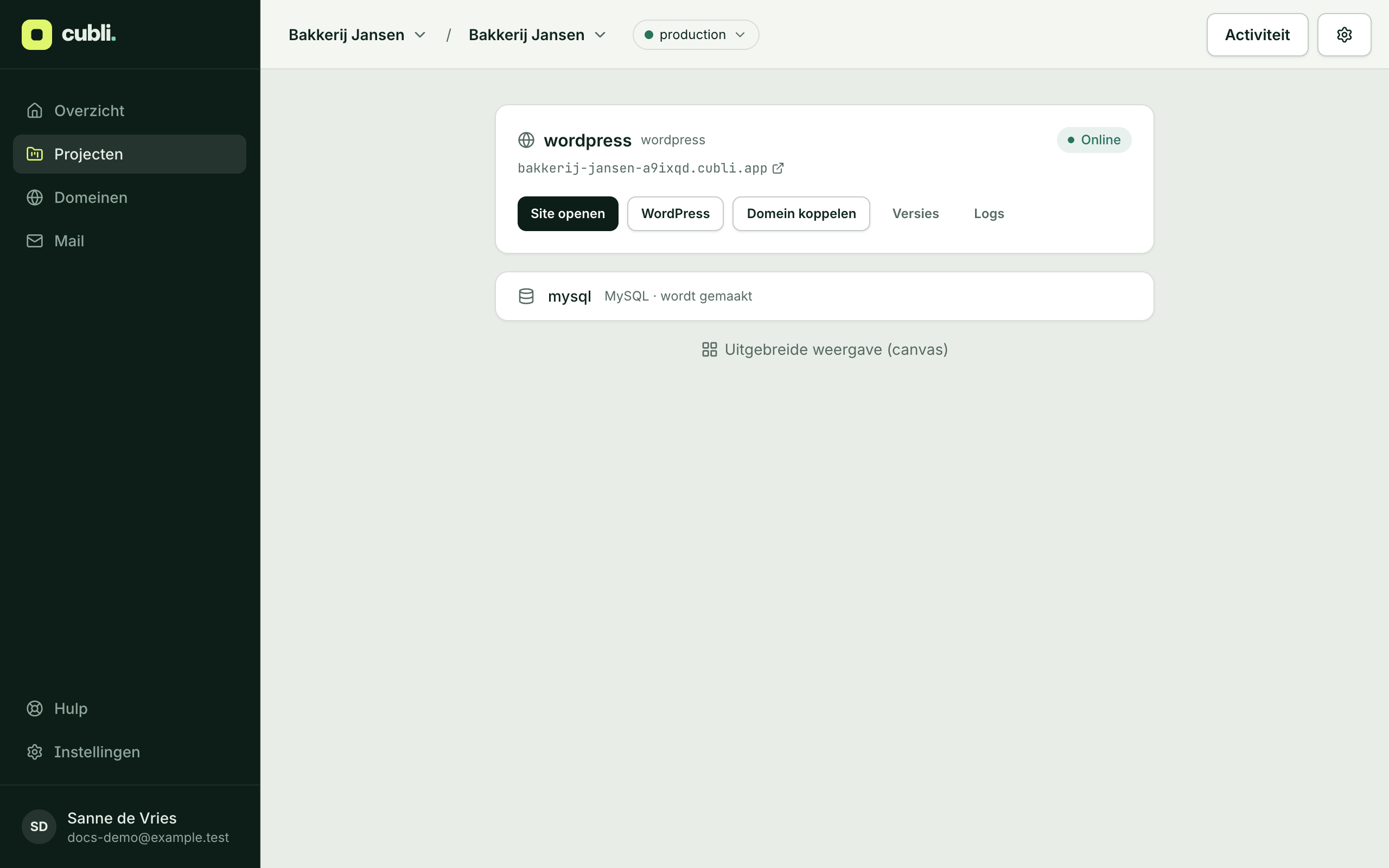
- Open the site: your site in a new tab.
- WordPress: sign in to WordPress, without a password.
- Connect a domain: your own domain name. See Connect your own domain.
- Versions: every version that was live, and one click back to an earlier one.
- Logs: what your site reports, for when something goes wrong.
More settings or several parts? Click Advanced view (canvas). Simple view takes you back. The dashboard works on your phone too.
Need help?
Stuck? Mail support@cubli.io.
Thank you for your feedback.What was missing? Mail it to support@cubli.io
Read next
Stuck? Mail support@cubli.io, or ask from your dashboard: Help